Daily Workflows
Import Contacts from CSV
Summary
Upload and map CSV contact data so outreach starts with clean, usable records.
Steps
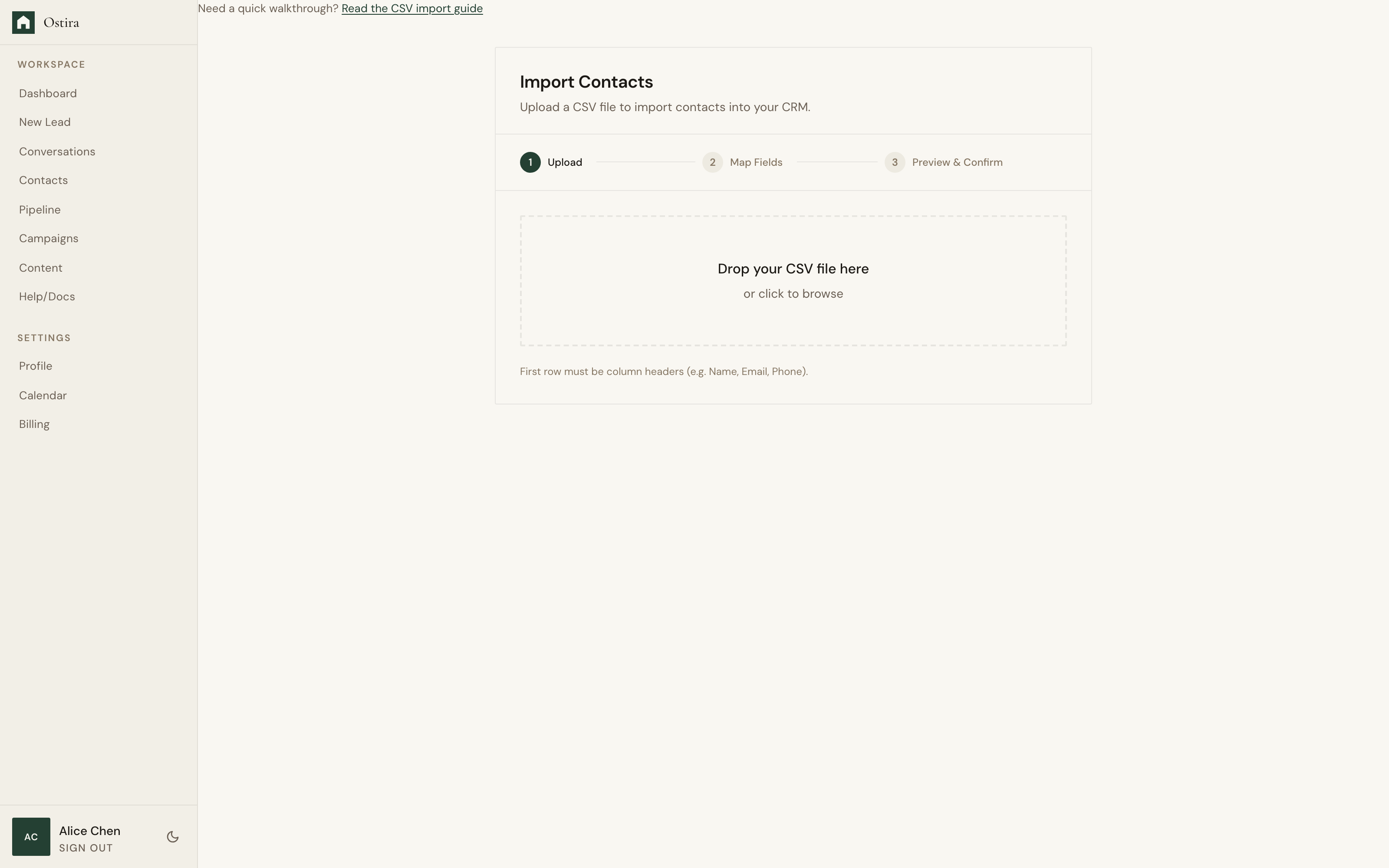
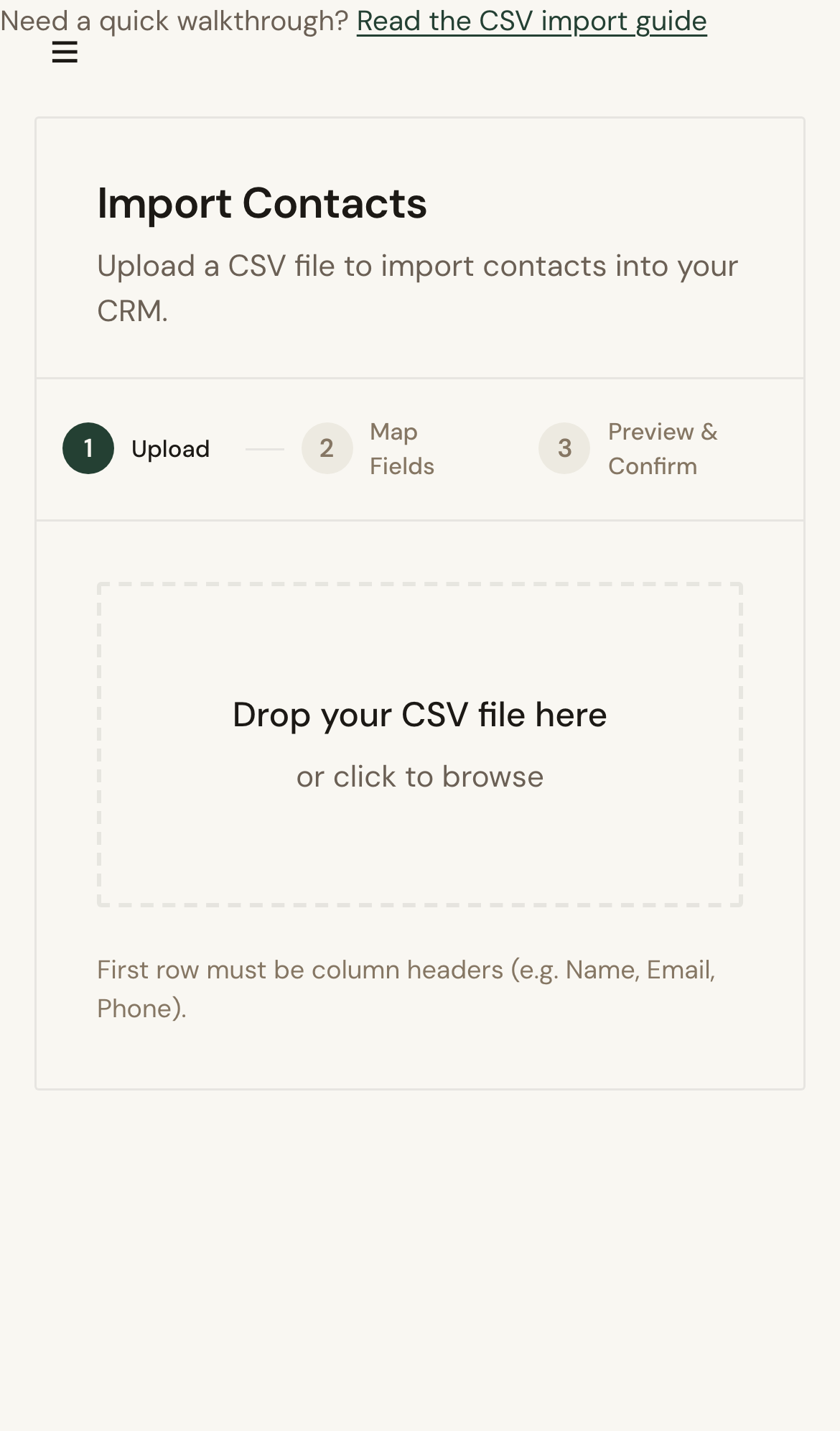
- Open Contacts Import and upload your CSV file.
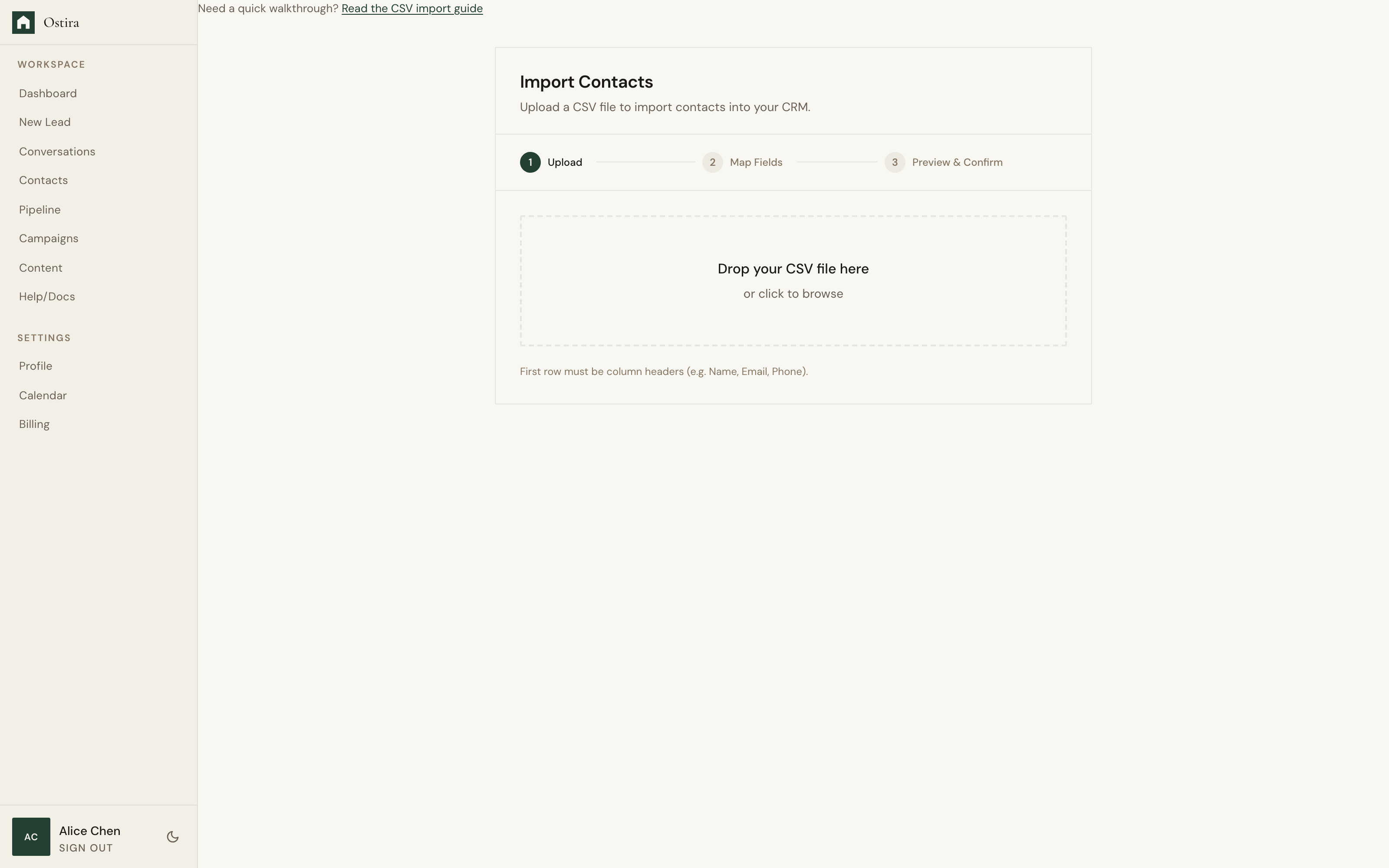
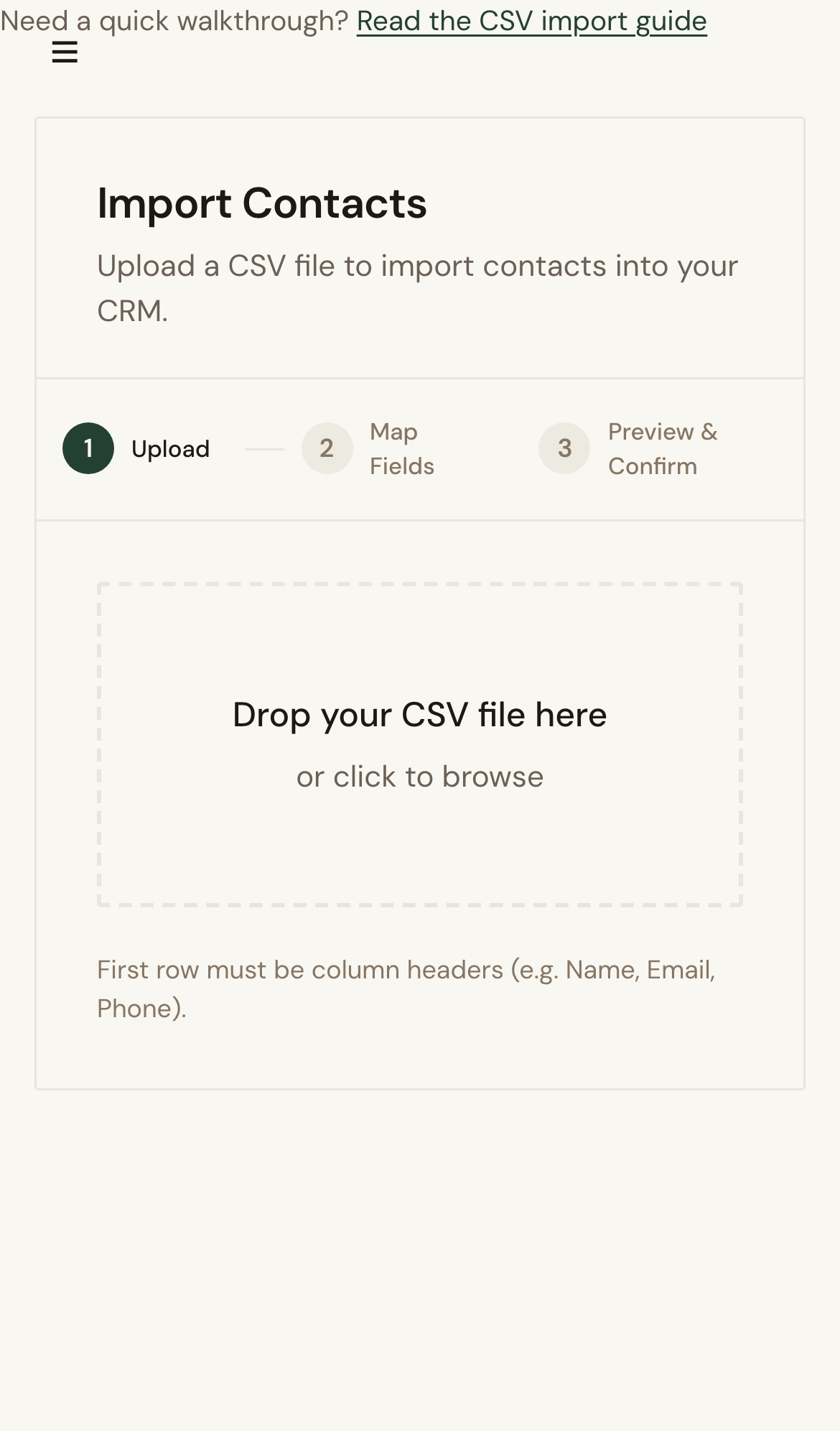
- Map CSV columns to contact fields before confirming.
- Review skipped rows in preview, then finalize import.
Expected Result
Contacts import with mapped fields and are ready for campaigns and follow-up.
Screenshots
Visual reference aligned to each step with desktop and mobile variants.
Step 1
Step 2
Troubleshooting
- If rows are skipped, check required fields and email formatting.
- If mapping is wrong, restart import and remap columns.
Tips & Tricks
- Normalize CSV headers before upload for faster mapping.
- Keep a backup export before large imports.